

# Cursor 使用第三方模型(LiteLLM 代理)

## 关键注意事项

1. **必须使用 Cursor Pro**
   - 只有 Cursor Pro 才能添加自定义模型。

2. **第三方模型需要重命名**
   - 避免与 Cursor 内置模型名称冲突,Cursor 会识别 gpt-5.4 这类规范,因此需要去掉中间的-
   - 例如:
     ```
     gpt-5.4 → gpt5.4
     gpt-5.3-codex → gpt5.3-codex
     ```

3. **OpenAI API Key 必须填写**
   - 可以随便写,例如:
     ```
     sk-cursor
     ```
   - 只要不为空即可。

4. **Override OpenAI Base URL 不能使用 localhost / 127.0.0.1**
- 必须填写服务器 IP 或域名,例如:
http://服务器IP:4000/v1
- Base URL 必须带
/v1
- Cursor 请求路径固定使用
/v1。
- 第三方 API 可能与 Cursor 不兼容
- 例如出现:
Invalid 'input.call_id': string too long
- 需要通过 LiteLLM Proxy 做协议转换。
服务器部署 LiteLLM
1 安装
pip install "litellm[proxy]"
2 创建配置文件
创建 litellm.yaml
model_list:
  - model_name: gpt5.4
    litellm_params:
      model: gpt-5.4
      api_base: https://你的API地址/v1
      api_key: sk-xxxx
  - model_name: gpt5.3-codex
    litellm_params:
      model: gpt-5.3-codex
      api_base: https://你的API地址/v1
      api_key: sk-xxxx
说明:
| 字段 | 作用 |
|---|---|
| model_name | Cursor 使用的模型名 |
| model | 真实模型名 |
| api_base | 第三方 API 地址 |
| api_key | 第三方 API Key |
3 启动代理
测试运行:
litellm --config litellm.yaml --port 4000
后台运行:
nohup litellm --config litellm.yaml --port 4000 > litellm.log 2>&1 &
Cursor 配置
在 Cursor Settings → Models 中填写:
OpenAI API Key
sk-cursor
Override OpenAI Base URL
http://服务器IP:4000/v1
Custom Model
gpt5.4
测试
在 Cursor 输入:
你好
如果返回正常内容,说明配置成功。
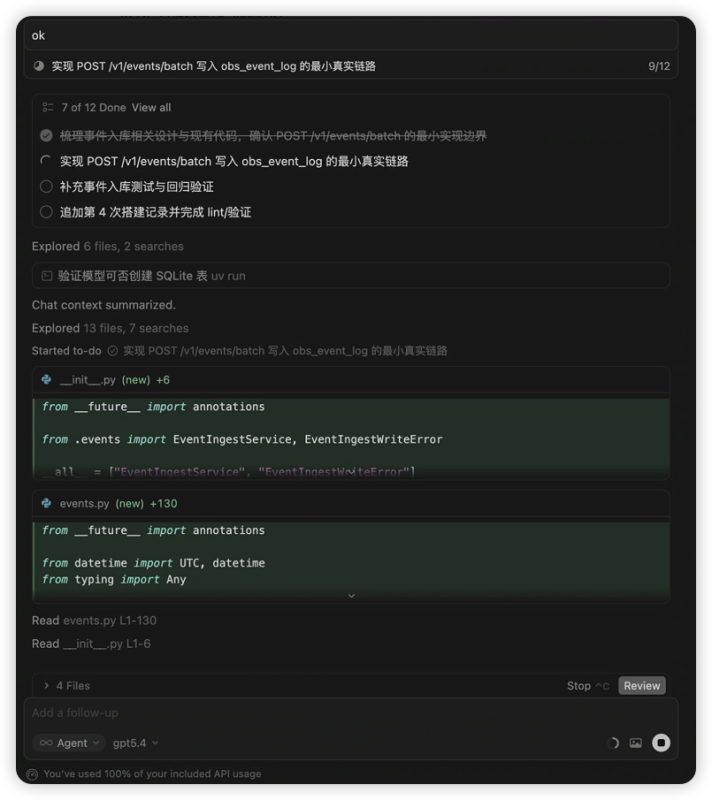
效果(Agent模式)
![图片[1]-无限流 GPT5.4 接入 Cursor-MacFun is an interesting website.](https://www.macfun.org/wp-content/uploads/2026/04/image-37.png)
最后

litellm 不是刚需,只有在第三方无法自由配置的时候才有需要进行代理
预祝大家使用愉快!
© 版权声明
文章版权归作者所有,未经允许请勿转载。
THE END





暂无评论内容